

You need to be your company’s Okta admin and an Artie admin to complete this setup.
- Access to your Okta admin dashboard
- Admin access to your Artie account (Settings → Authentication)
Set up Okta
1
Create an Artie application in Okta
- Log in to your Okta admin dashboard
- Go to Applications → Applications
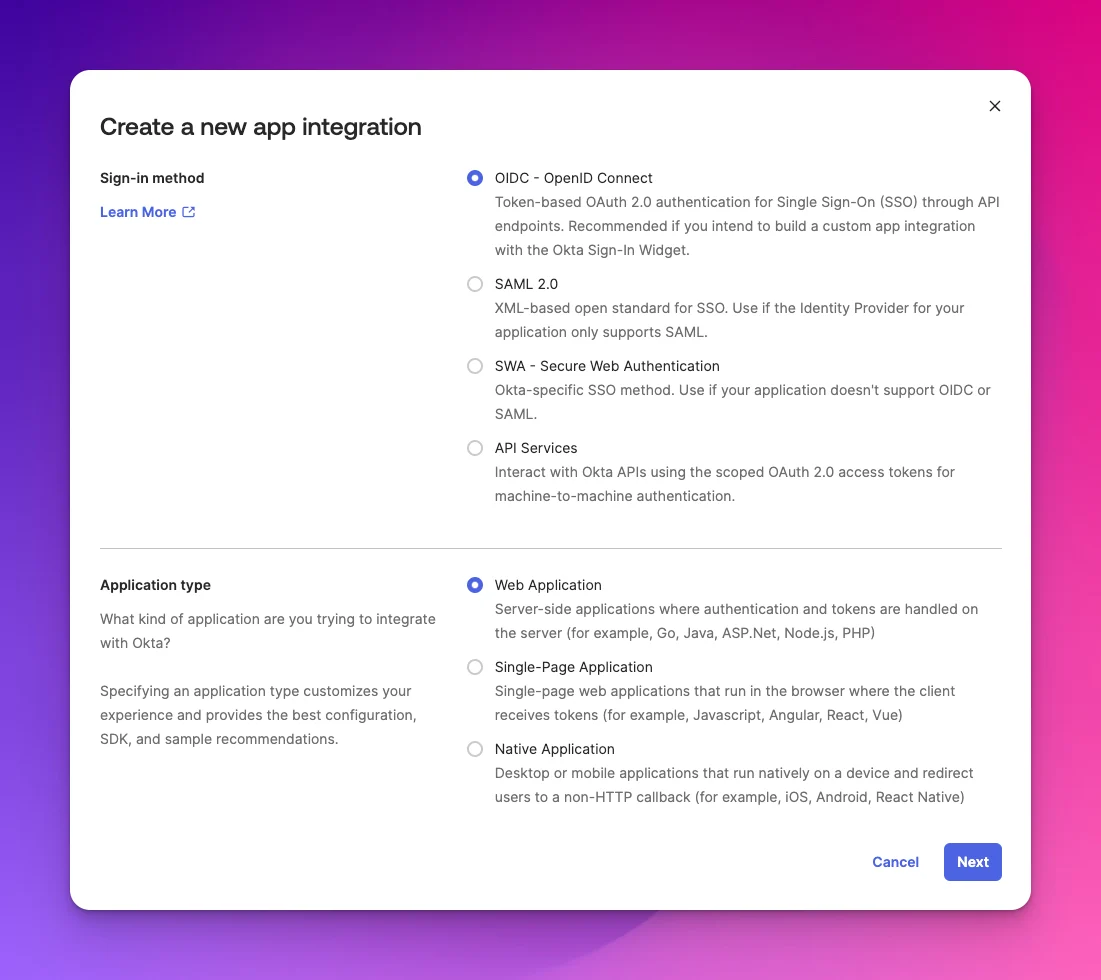
- Click Create App Integration
- Select OIDC - OpenID Connect and choose Web Application
-
Click Next
2
Fill in the application settings
- Application name: Artie
- Grant type: Authorization Code only
- Sign-in redirect URI:
https://api.artie.com/sso/okta/callback - Sign-out redirect URI:
https://api.artie.com/logout - Initiate login URI (optional, enables Artie as an Okta tile app):
https://api.artie.com/sso/okta/login
3
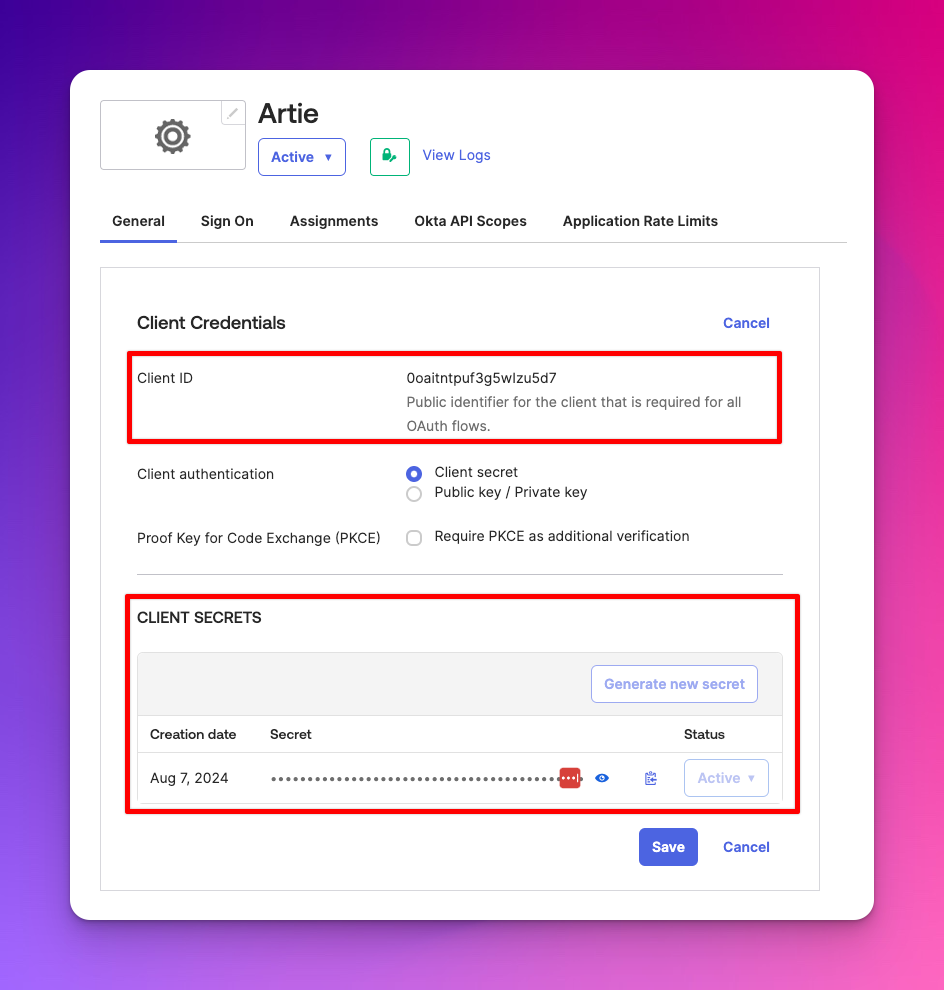
Retrieve your credentials
From the application’s General tab, copy: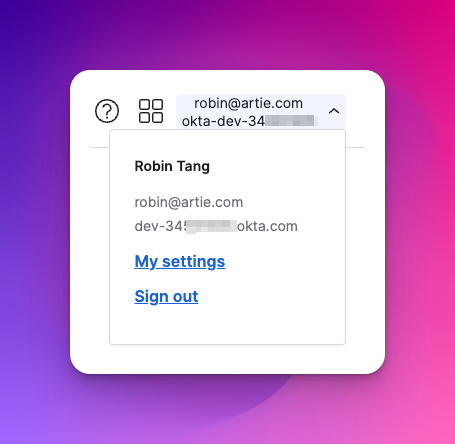
- Client ID
-
Client secret
https://yourcompany.okta.com.Configure SSO in Artie
- Go to Settings → Authentication in Artie
- Click Configure Okta SSO
- Enter your Okta domain, Client ID, and Client secret
- Click Save
Provisioning users (SCIM)
Artie supports automatic user provisioning and deprovisioning from Okta via SCIM (beta).The SCIM app is separate from the SSO app. The SCIM integration handles provisioning only and does not support login.
1
Create a SCIM API key in Artie
In Artie, go to Settings → Authentication and create a new API key with the SCIM type. Copy and securely store the key. You will need it in Okta.
2
Add the SCIM integration to Okta
Add the OAuth Bearer Token Governance with SCIM 2.0 integration to your Okta tenant.On the General Settings page:
- Set the Application label (e.g.
Artie SCIM) - Under Application visibility, uncheck Display application icon to users. This app does not support login and should not be visible to end users.
3
Configure SCIM provisioning
Open the newly created app and go to the Provisioning tab:
- Click Configure API Integration
- Check Enable API integration
- Set Base URL:
https://api.artie.com/scim/v2 - Set OAuth Bearer Token: paste the SCIM API key from Step 1
- Leave Import Groups unchecked
- Click Test Integration, then Save
- Create Users
- Deactivate Users
4
Assign users
Go to the Assignments tab, click Assign, and assign the users or groups who should have Artie access. Assigned users are automatically provisioned to Artie with standard permissions.