> ## Documentation Index
> Fetch the complete documentation index at: https://www.artie.com/docs/llms.txt
> Use this file to discover all available pages before exploring further.
# Connect to your Managed Kafka cluster
> Connect Kafka clients to an Artie Managed Kafka cluster over TLS with SASL/SCRAM-SHA-512, using the bootstrap server and admin login from the Artie Dashboard.
## What you'll need
* A cluster that's **Ready**. See [Create a cluster](/docs/managed-kafka/create-a-cluster).
* Your app's IP address on the cluster's [IP allowlist](/docs/managed-kafka/manage#cluster-settings), if you turned on **Restrict access by IP**.
## Get the login
Open your cluster in the Artie Dashboard and go to the **Connect** tab.
| Field | Value |
| -------------------- | --------------------------------------------------------------------------------- |
| **Bootstrap server** | Your cluster's address, for example `mk-4f8k2q.use1-az1.kafka.aws.artie.so:9092`. |
| **Username** | `admin` |
| **Password** | Click **Show** to see it. |
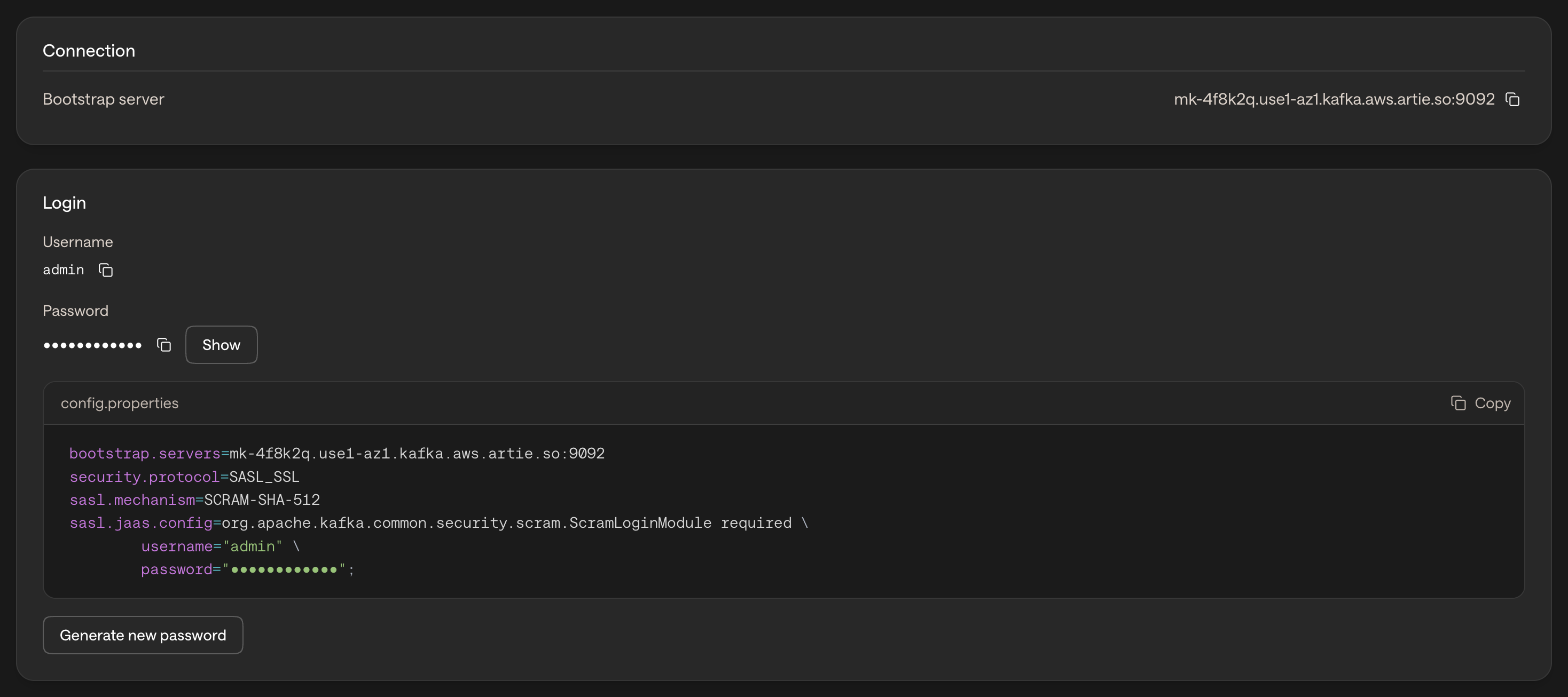 Clients connect over TLS with SASL/SCRAM-SHA-512. The cluster uses a public TLS certificate, so you don't need a truststore.
## Connect a client
Replace the bootstrap server with your own and `` with your cluster's password.
**Java / Kafka CLI**
Save this as `config.properties`:
```properties
bootstrap.servers=mk-4f8k2q.use1-az1.kafka.aws.artie.so:9092
security.protocol=SASL_SSL
sasl.mechanism=SCRAM-SHA-512
sasl.jaas.config=org.apache.kafka.common.security.scram.ScramLoginModule required \
username="admin" password="";
```
Check that it works by sending a message:
```bash
kafka-console-producer.sh --bootstrap-server mk-4f8k2q.use1-az1.kafka.aws.artie.so:9092 \
--producer.config config.properties --topic orders
```
Type a message and press Enter. If the command hangs or times out, check that your IP address is on the cluster's allowlist.
**Python**
Using [`kafka-python`](https://github.com/dpkp/kafka-python) 2.0 or later:
```python
from kafka import KafkaProducer
producer = KafkaProducer(
bootstrap_servers="mk-4f8k2q.use1-az1.kafka.aws.artie.so:9092",
security_protocol="SASL_SSL",
sasl_mechanism="SCRAM-SHA-512",
sasl_plain_username="admin",
sasl_plain_password="",
)
producer.send("orders", b"hello")
producer.flush()
```
Topics are created automatically the first time a client writes to them, with 14 days of retention. To set partitions or retention up front, [create the topic](/docs/managed-kafka/manage#topics) first.
## Advanced
**Which ports do clients use?**
Clients connect to the bootstrap server on port 9092. Each broker also gets its own port, from 9093 up to 9092 plus your broker count, so 9092 to 9095 for 3 brokers and at most 9092 to 9122. Allow outbound traffic to the whole range, not only 9092, and widen it before you add brokers.
**My client stopped connecting after a password change**
Generating a new password stops the old one working as soon as the new one is ready. Copy the new password from the **Connect** tab and update every client. See [Generate a new password](/docs/managed-kafka/manage#generate-a-new-password).